What Are Parallel Steps?
In a standard Droplet workflow, a submission moves through steps one at a time. One person reviews, then the submission moves on to the next person.
Parallel steps change that.
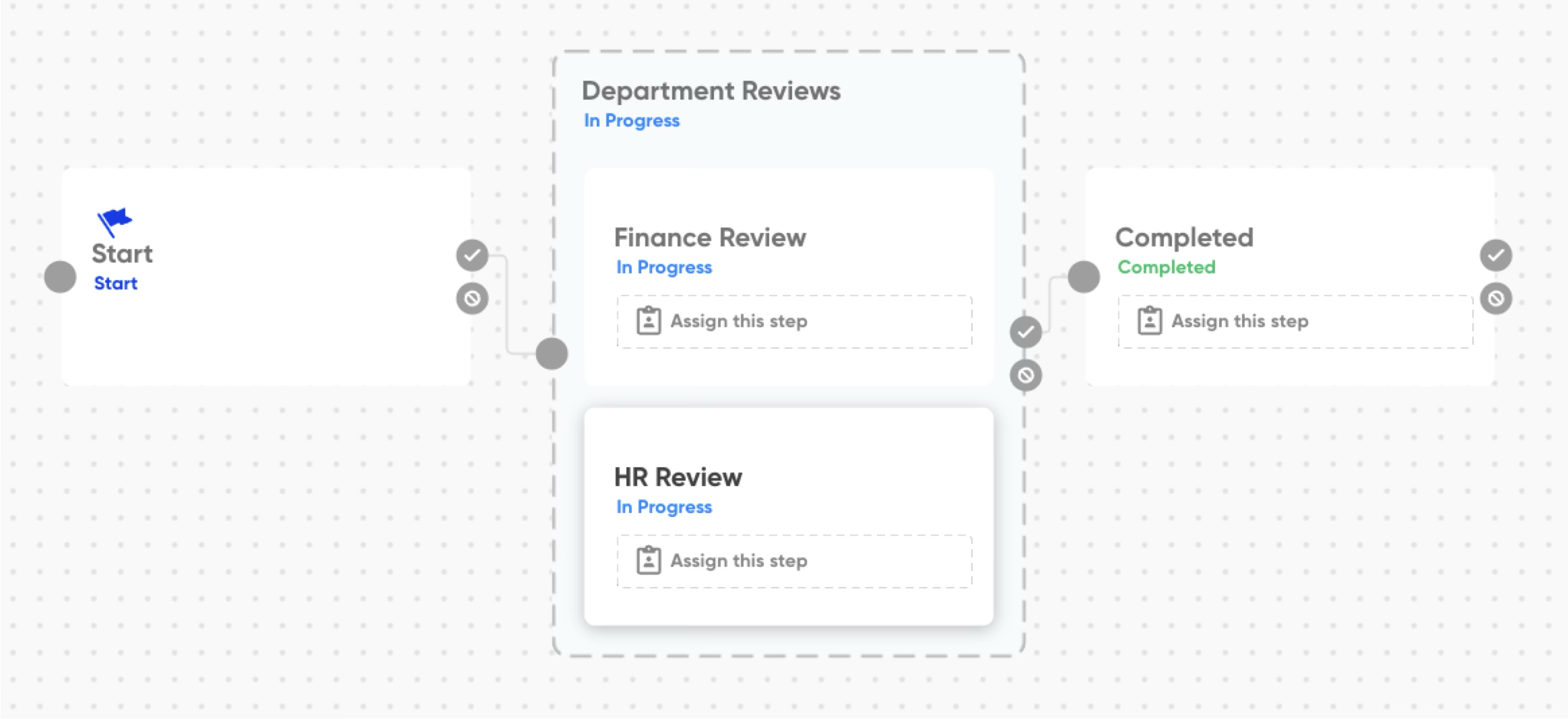
When a submission enters a parallel step, it fans out to multiple reviewers at once.
Each reviewer works in their own substep, which is a separate, independently assigned review with its own assignee and visibility settings. The workflow doesn't advance until every substep is either completed or automatically skipped.
Here's a quick example of what a parallel step looks like in the Workflow Editor:
Adding a Parallel Step to Your Workflow
Open your form in the Form Builder and navigate to the Workflow editor. You'll add the parallel step and its substeps the same way you add any other workflow step.
Add the Parallel Step
From any existing step card, click the blue approve icon to add a new step to the workflow canvas.
Click and drag that new step until it overlaps with another existing workflow step that you would like to exist in parallel. This converts each step to a substep within a new parallel step.
Give the parallel step a clear name, like Parallel Review, so it's easy to identify on the canvas
Assigning Substeps
Every substep needs an assignee. The assignment options work the same way as any regular workflow step: static, dynamic, or submitter. The key difference is that assignment belongs to the substep, not the parallel step container. The parallel step itself does not have an assignee.

Dynamic assignment works great in substeps. If each submission needs to go to a different principal or department head based on what was filled out in the form, the substep can look that person up automatically, just like any other step in your workflow.
Setting Up Submit and Reject Paths
Substeps share their submit and reject pathways with the parallel step that contains them. You set those paths on the parallel step card, not on each individual substep.
Think of it this way: no matter which substep a reviewer is working in, the Submit and Reject buttons will always follow the paths you've defined on the parallel step. A reviewer in HR Review and a reviewer in Finance Review will always send the submission to the same next step when they approve.
On the canvas, click the blue approve icon on the parallel step card (not on the substep cards) to draw the submit path to the next step in your workflow.
If you want a rejection path, click the red reject icon on the parallel step card and connect it to wherever rejected submissions should go.
Skipping a Substep Automatically
Sometimes a substep only applies under certain conditions. For example, Finance only needs to review if the amount is over a certain threshold. You can set up Step Run Rules on any substep so that Droplet evaluates the condition when the submission arrives and simply skips that substep if the condition isn't met.
A skipped substep counts as complete. The rest of the parallel step continues normally, and the workflow doesn't wait for a skipped substep.
Click on the substep card you want to add a condition to, then open Details.
In the Step Run Rule section (top-right corner), enter the condition that must be true for this substep to run. If the condition is false when the submission arrives, the substep will be skipped automatically.
You can also add Step Run Rules to the parallel step itself. If that condition is false, the entire parallel step (all substeps together) will be skipped, and the submission will move forward as if everyone had approved.
If every substep ends up being skipped because all of their conditions evaluated to false, the parallel step is treated as entirely skipped. No assignment emails go out and no notifications fire in that case.
How Parallel Steps Work in Practice
When a Submission Arrives
The moment a submission reaches a parallel step, Droplet evaluates any skip conditions and then sends assignment emails to all active substep reviewers at once. Every reviewer gets their notification at the same time and can begin working immediately. No one has to wait for anyone else.
While Substeps Are in Progress
Each reviewer sees and works in their own substep independently. One reviewer's edits or progress don't affect what the other sees while both are working at the same time. Changes are combined once everyone is finished.
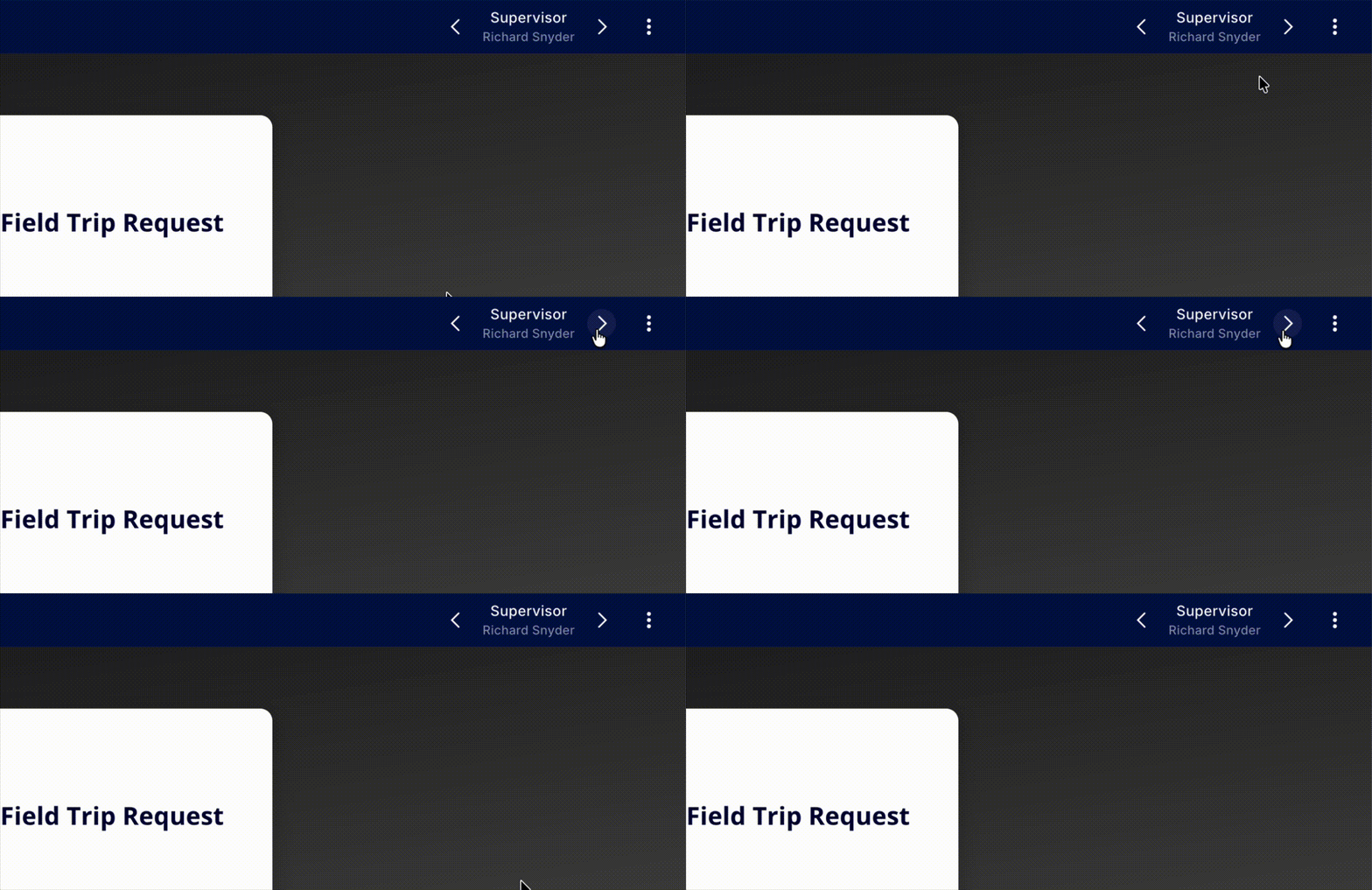
As an admin, you can monitor the submission while the parallel step is in progress. A substep switcher appears in the top menu bar, showing which substep you're currently viewing along with that reviewer's name and email. Use the arrows to switch between substeps.
When a Reviewer Submits
When a reviewer presses Submit from their substep, their portion is marked complete. If other substeps are still in progress, the submission simply stays put while it waits for the remaining reviewers to finish. There's no notification at this point; the workflow is still running.
Once the last reviewer submits, everything resolves together. Notifications, integrations, and any other side effects all fire as a group, and the submission moves forward to the next step.
If a reviewer completes their substep early and later opens their submission link again, they'll see their completed substep in read-only mode, just like any other completed step in Droplet.
When a Reviewer Rejects
If any reviewer presses Reject from their substep, the entire parallel step exits immediately. Any other reviewers who hadn't finished yet are interrupted; their substeps close and can no longer be submitted. The submission routes to wherever your rejection path on the parallel step is pointed.
When a parallel step re-activates after a rejection (for example, if your workflow loops back to it), all substeps start fresh. New assignments are made, skip logic is re-evaluated, and any saved progress from the previous attempt is cleared.
What Each Part Can and Can't Do
A few capabilities work differently between the parallel step container and its substeps. Use this table as a quick reference:
Things to Know
If one person ends up assigned to multiple substeps, they'll see the first one when they open the submission. Once they complete it, they'll need to reload the page to access and complete the next one.
A substep cannot itself contain another parallel step. If you find yourself wanting parallel-within-parallel logic, reach out to Droplet Support and we can help you think through how to structure that process.
Parallel steps are designed for the middle of a workflow. They can't be the Start or Completed step, and they always display as In Progress in the platform.
Parallel steps are best when each reviewer sees different fields or has a different purpose in the review. If you want multiple people to review the same thing and move forward as soon as anyone completes it, that's a different feature. Contact Droplet Support for guidance on the right setup for that scenario.
If you publish a new version of your form while submissions are actively in a parallel step, those in-flight submissions may get stuck. We recommend waiting until all active parallel-step submissions have moved forward before publishing version changes that affect your parallel step structure. If you do run into an issue, contact Droplet Support and we can help.
Our team is happy to walk through your process with you. Reach out anytime at support@droplet.io.
Was this article helpful?
That’s Great!
Thank you for your feedback
Sorry! We couldn't be helpful
Thank you for your feedback
Feedback sent
We appreciate your effort and will try to fix the article